


SUMMARY
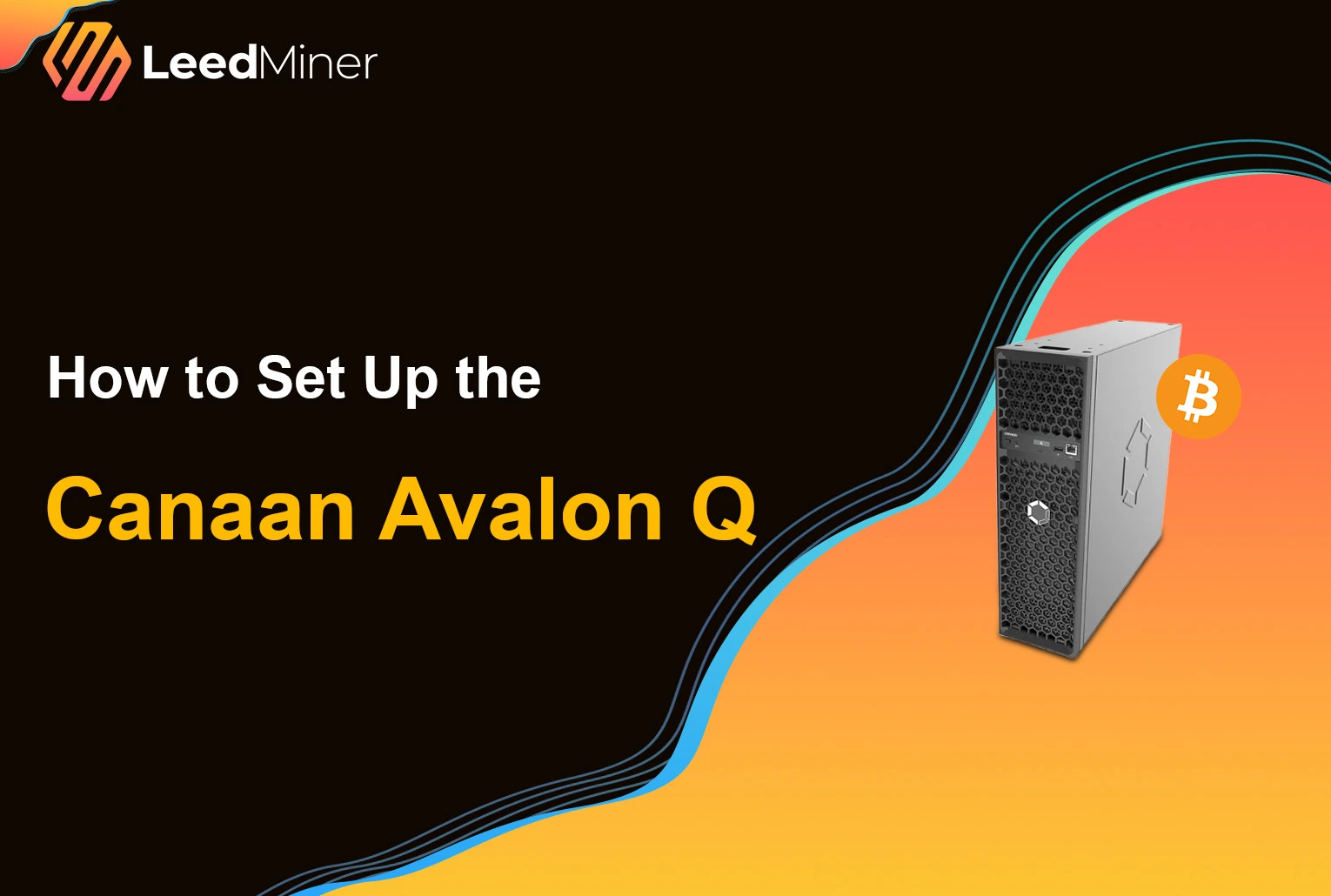
The Canaan Avalon Q is designed with home users in mind — it’s compact, easy to manage via mobile, and most importantly, quiet. If you’re looking to start mining Bitcoin without the usual noise and complexity, here’s a step-by-step guide to get your Avalon Q up and running in no time.
Unboxing and What’s Inside

Inside the box, you’ll find:
- Multilingual user manual
- USB WiFi adapter
- Anti-slip rubber feet
- Power cable
- F2Pool discount card (25% fee reduction)
The miner itself is protected by thick foam, ensuring safe delivery — a hallmark of Canaan’s Avalon Family.
Get to Know the Miner
The Avalon Q weighs about 11.2 kg — compact enough for your living room or home office.
Front Panel Overview:
- USB port: For the WiFi adapter
- Power & Reset buttons
- LCD screen: Shows IP address, power use, and operation mode
- LAN port (optional use)
- Dust filter cover: Removable with washable dual filters
Back Panel:
- Power input & main switch
- Quiet exhaust fan for hot air removal
Maintenance Tip:
Connect via Avalon Family App
You can control everything from your phone using the Avalon Family App (iOS & Android).
To set it up:
- Plug in the miner and insert the USB WiFi adapter
- Launch the app → Tap “Add New Device”

- The app will auto-detect the Avalon Q

- Connect to your home WiFi

- Change the default password (optional but recommended)
Access the Dashboard on Your PC
Want desktop access too?
- Check the IP address on the LCD

- Enter the IP in your browser
- Use the Avalon Family App to scan the QR code shown on your computer screen


Configuring the Mining Pool
Using the app:
- Go to Pool Configuration
- Enter your mining pool URLs (get these from your pool provider)
- Set your Worker Name (e.g., username.001)
- Set a Password (123 works fine unless otherwise specified)
Tip: Avalon Q works well with F2Pool and offers regional server options.

Choose Your Power Mode
You can toggle between three performance levels depending on your setup:
| Mode | Hashrate | Power Usage |
|---|---|---|
| Eco | 52 TH/s | 800W |
| Standard | 75 TH/s | 1300W |
| Super | 93 TH/s | 1800W |

Suggestion: Use Super Mode during the day with solar panels, and switch to Eco Mode at night to reduce noise and power cost.
Check the Noise Levels
Unlike traditional miners, the Avalon Q is whisper-quiet:
| Mode | Sound Level |
|---|---|
| Eco | 45–52 dB |
| Standard | 52–55 dB |
| Super | 60–66 dB |
That’s a big improvement over older miners like the Antminer S9 (75–80 dB). You can actually run this unit in your living room without disturbance.

Final Thoughts
Setting up the Canaan Avalon Q is simple, intuitive, and perfect for home environments. Whether you're a beginner or a veteran miner looking for a silent option, this device delivers efficiency with peace and quiet. If you’re tired of noisy rigs and complex setups, the Avalon Q might just be your ideal mining companion.